
Canvas Editor
import { Aside } from ‘@astrojs/starlight/components’;
Source: Master Spec v2.0, §7.
Input and navigation
Section titled “Input and navigation”Stylus, one-finger drawing, mouse, and trackpad. Two-finger pan and pinch-to-zoom never create marks; use palm rejection when a stylus is detected. Canvas objects must not move or distort on orientation change. Tablet landscape is the primary editor layout; portrait remains functional.
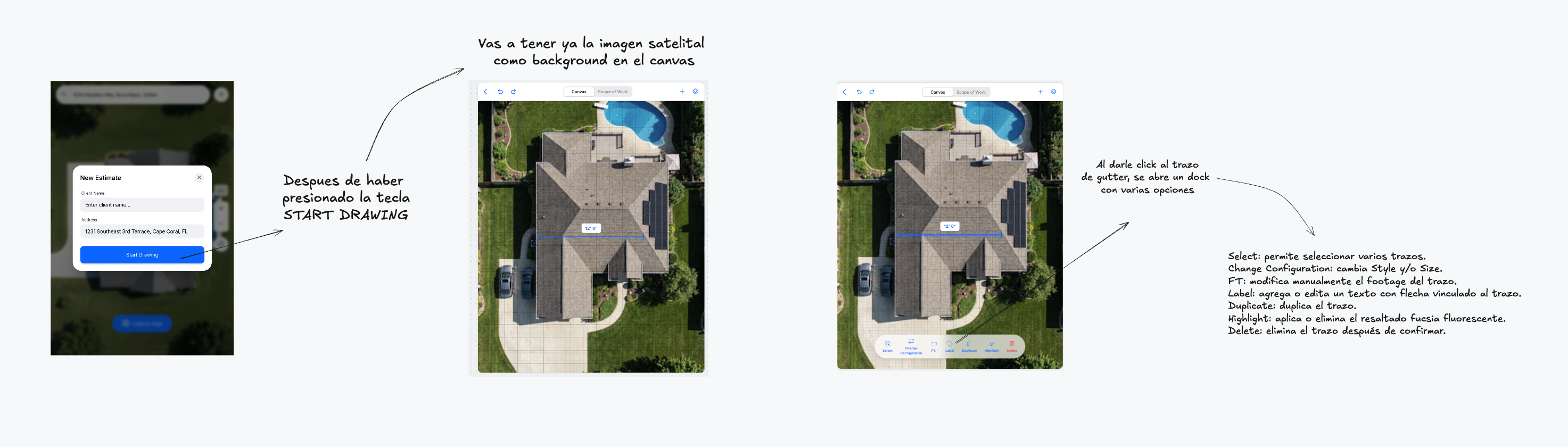
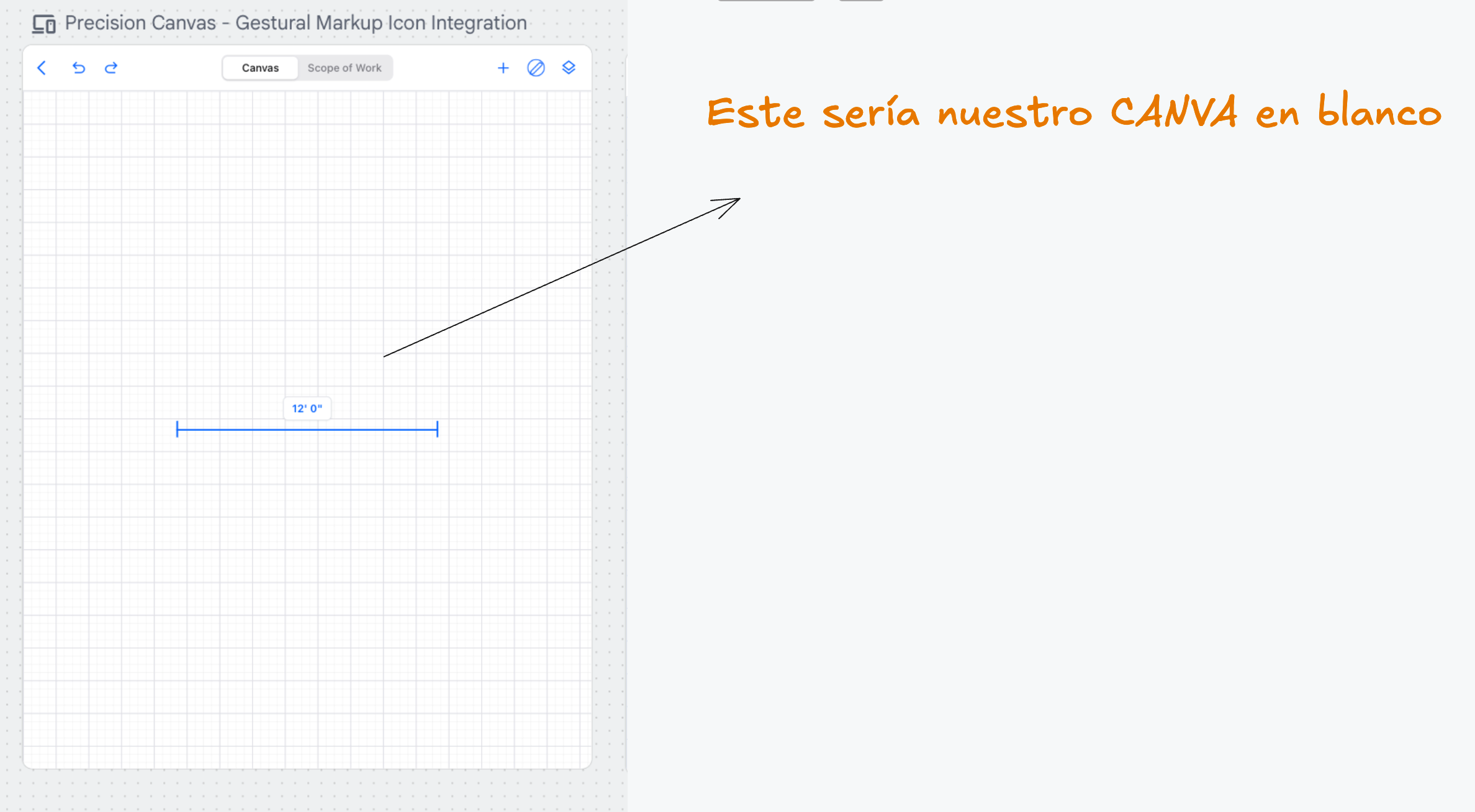
Visual references 14–15 — approved visual direction for this section. The written requirements above prevail over labels, sample data, or prices shown in the images. See Canvas Editor references
Fixed top toolbar
Section titled “Fixed top toolbar”Back · Undo · Redo · Canvas / Scope of Work segmented control · Products (+) · Drawing Tools · Layers. These controls never appear in Preview or JPG.
Back opens a modal: Continue Editing, Save Draft & Exit, Delete Estimate (sends to Admin Trash).
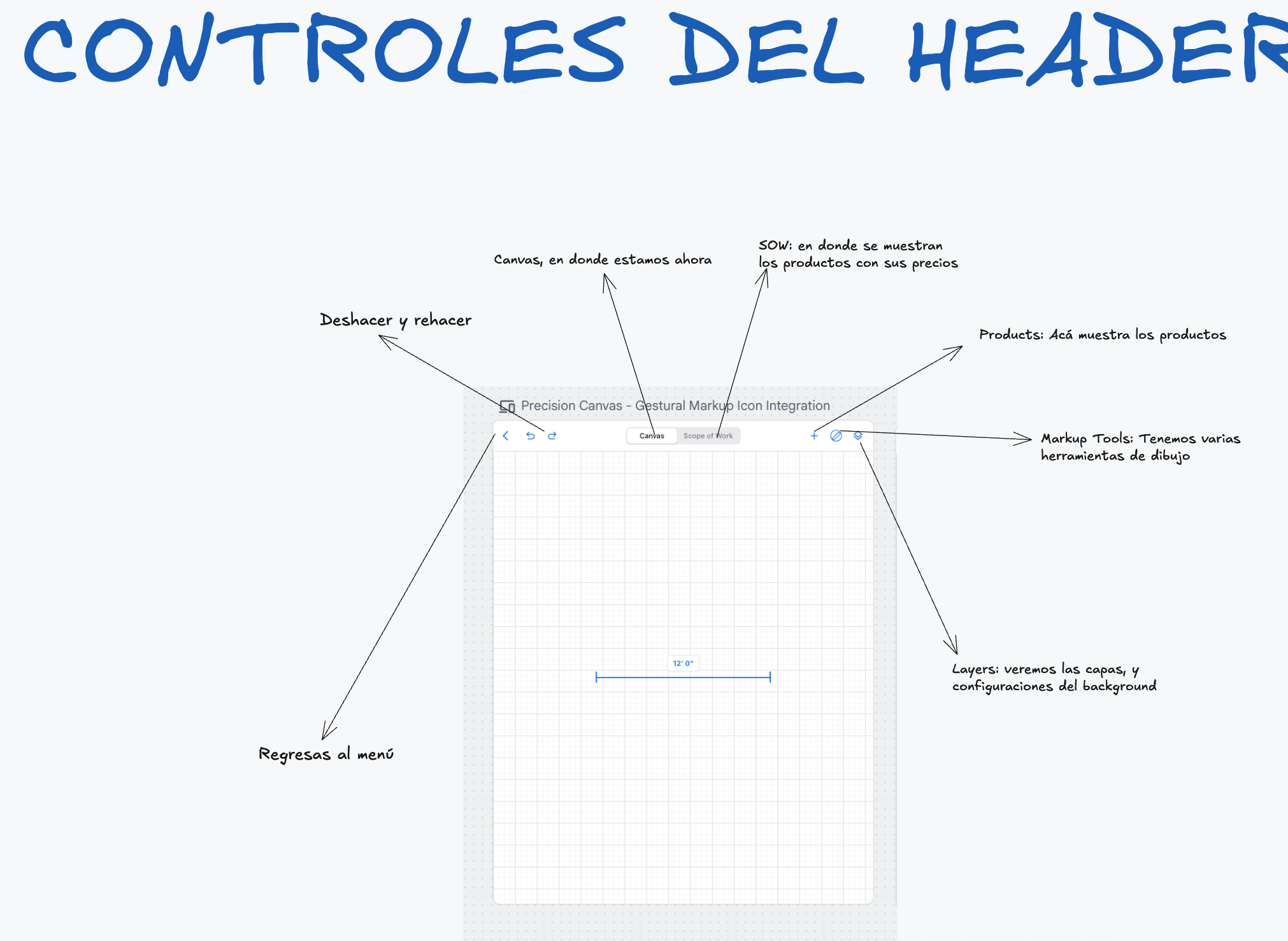
Visual reference 16 — approved visual direction for this section. The written requirements above prevail over labels, sample data, or prices shown in the images. See Canvas Editor references
Product picker (+)
Section titled “Product picker (+)”One popover with Products / Services / Accessories tabs — a compact white Apple-style floating card anchored under +, segmented tab control, three-column icon grid, configured product icons in Apple Blue with names below.
Selection is progressive inside the same popover: Category → Product → Style/Type → Size → Material (as applicable). Color remains a SOW selection unless a catalog definition requires it before placement. The chosen tool stays active until changed. Placeholder items such as Test are excluded.
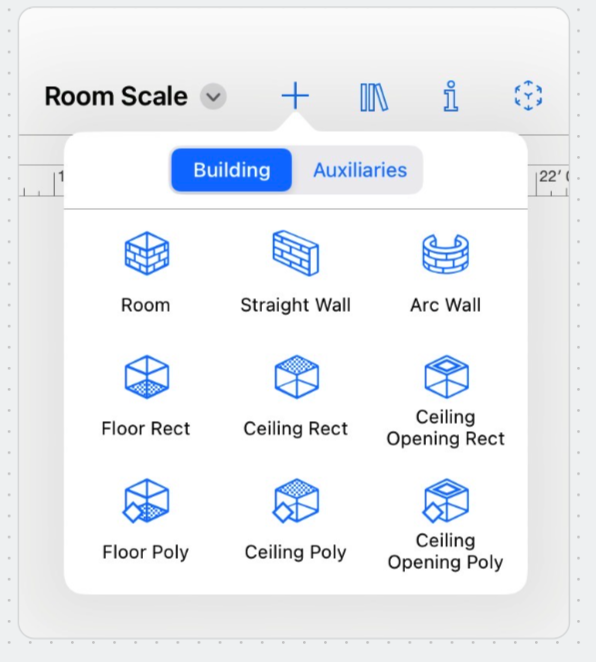
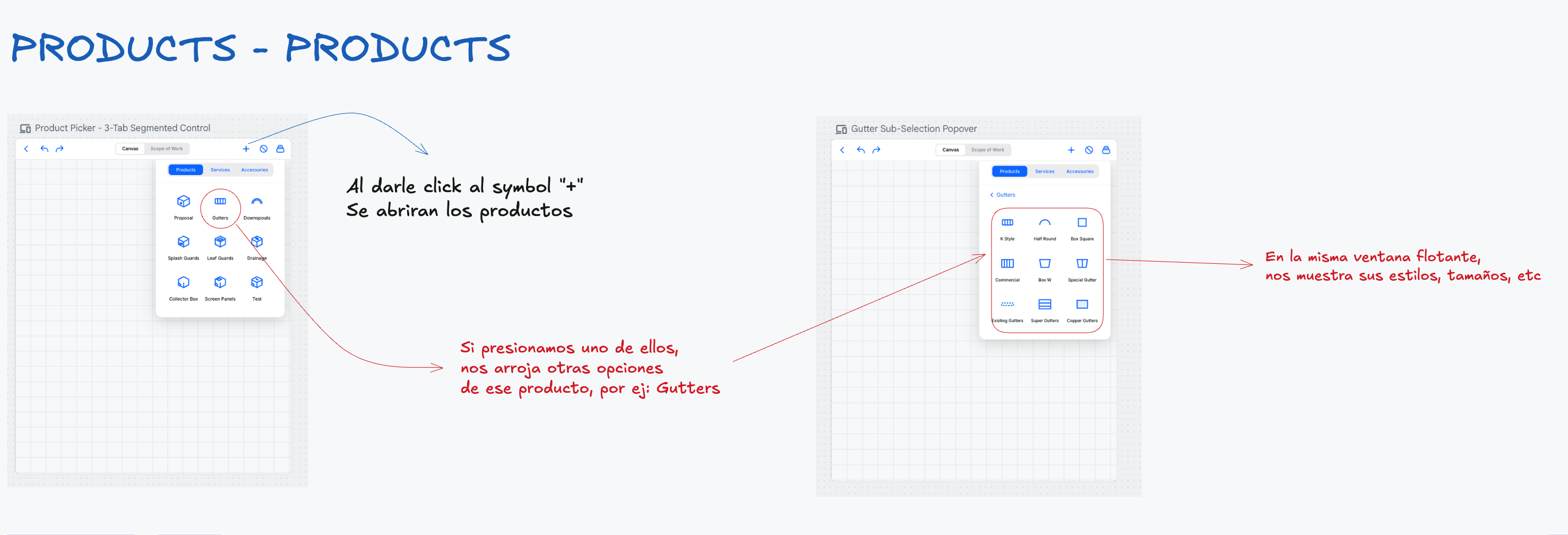
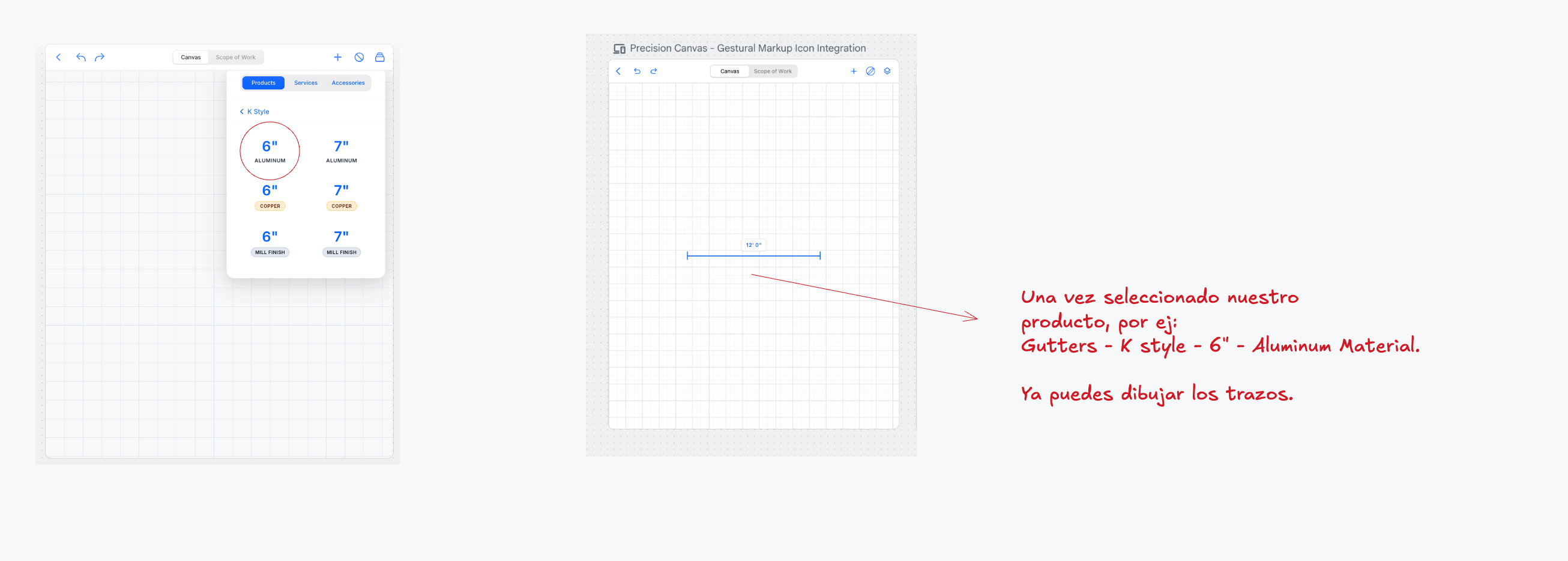
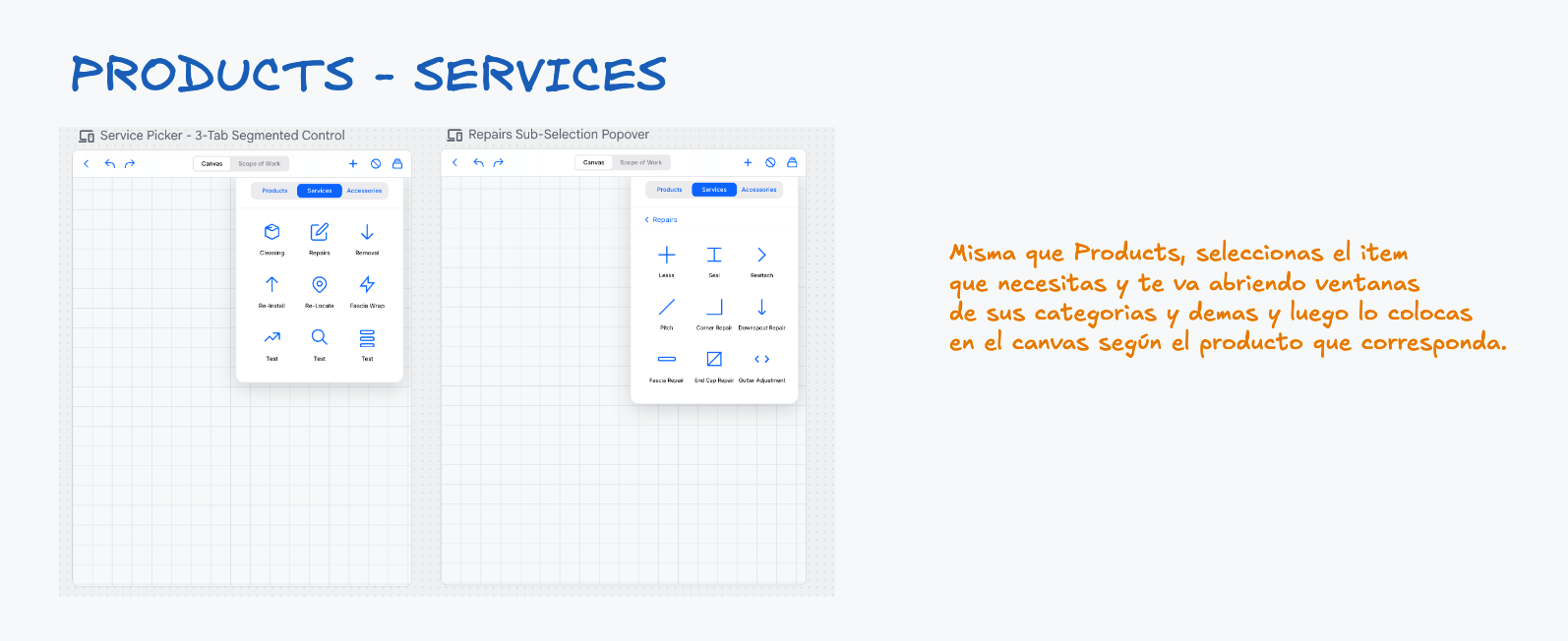
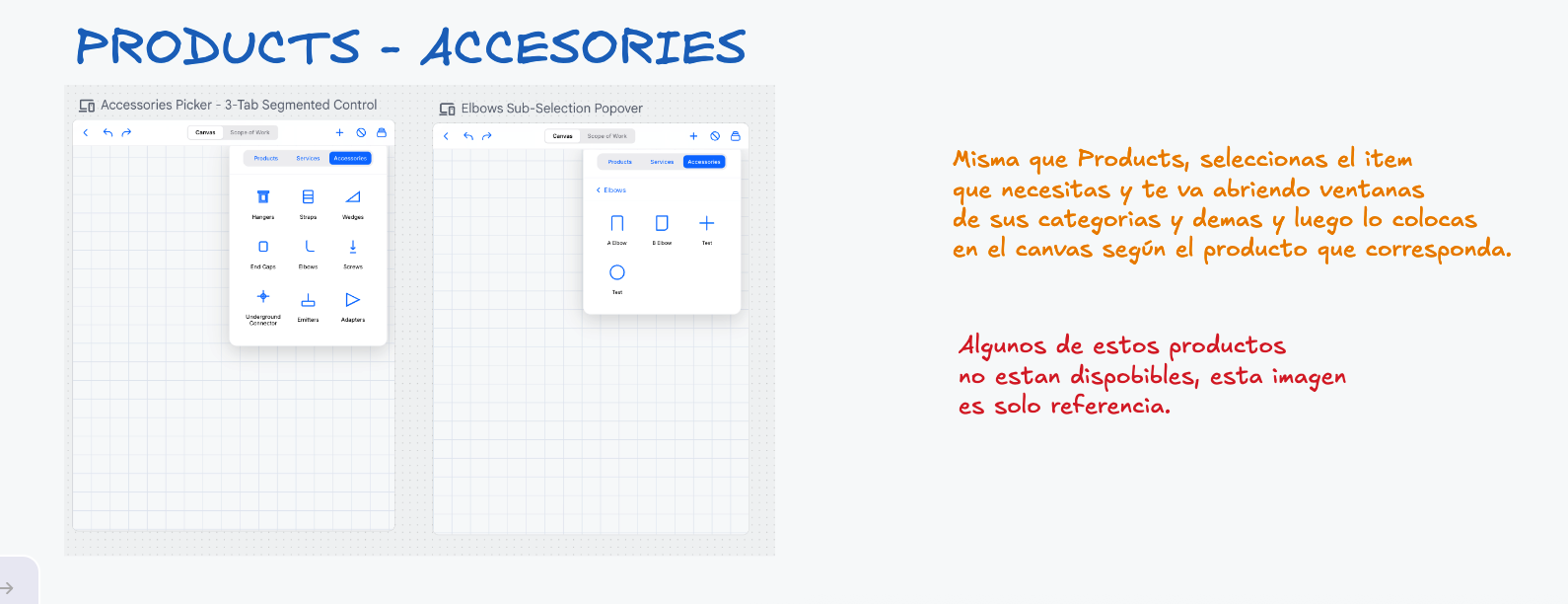
Visual references 17–21 — approved visual direction for this section. The written requirements above prevail over labels, sample data, or prices shown in the images. See Canvas Editor references
Drawing tools
Section titled “Drawing tools”Free Draw · Highlight Area · Text · Arrow + Text. The active tool offers line thickness and color controls. Created markups appear in Preview and JPG; toolbars, selection boxes, handles, and editing controls do not.
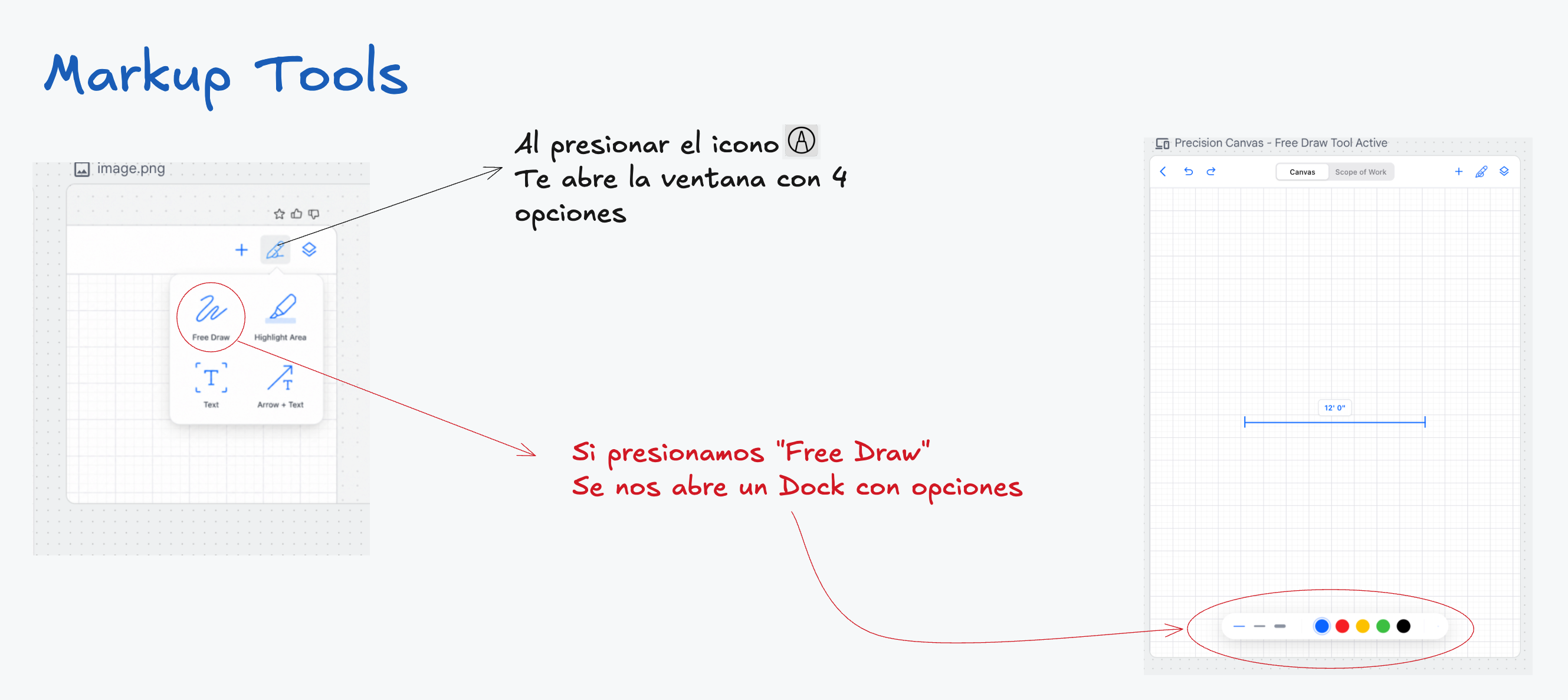
Visual reference 22 — approved visual direction for this section. The written requirements above prevail over labels, sample data, or prices shown in the images. See Canvas Editor references
Layers
Section titled “Layers”- Background (Satellite/Image or Blank): hide/show the saved base image without deleting it. Switching to Blank preserves crop, calibration, and all objects. Preview/JPG honor the state.
- Grid Overlay: toggle on/off; no effect on measurement or snapping; appears in JPG when enabled.
- Grayscale: slider full-color → full-grayscale; affects only the base image; Preview/JPG honor it.
- Crop / Focus Map: the only mode that unlocks the base image — reposition, pan, zoom, crop, focus. Canvas elements preserve alignment as the view transforms. Done/Apply commits; Cancel restores. Background locks again immediately after. Cannot replace the image with another property.
- Reset View: resets background presentation after confirmation, without deleting products, markups, labels, measurements, configurations, or SOW data.
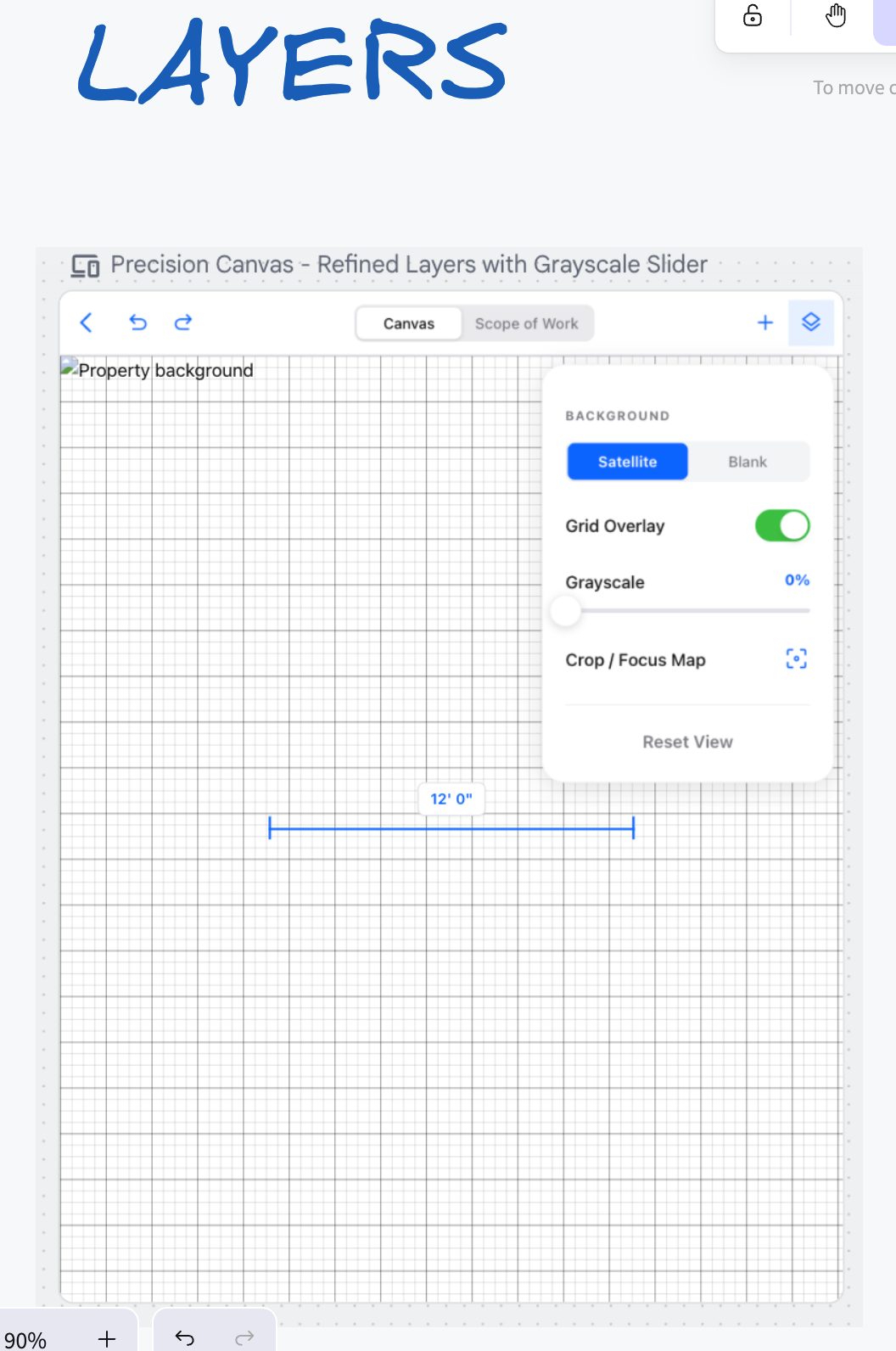
Visual reference 23 — approved visual direction for this section. The written requirements above prevail over labels, sample data, or prices shown in the images. See Canvas Editor references
Geometry and measurement behavior
Section titled “Geometry and measurement behavior”Straight independent segments; connected multi-segment paths; closed paths when the final point connects to the first. Endpoint snapping with clear visual feedback — snapping aligns endpoints but never permanently groups lines. Each segment stays independently editable. Group/Ungroup and rectangle/lasso selection are outside the MVP. Supported: selection, move, vertex editing, duplicate, delete; multi-select by tapping.
Contextual bottom dock
Section titled “Contextual bottom dock”Selecting an element opens a bottom dock: Select · Change Configuration · FT (measurable lines only) · Label · Duplicate · Highlight · Delete. (The Convert label from an early mockup is replaced by Change Configuration.) Multi-select offers at least Change Configuration, Move, Delete. Delete always requires confirmation and immediately updates the SOW. The dock never appears in Preview or JPG.
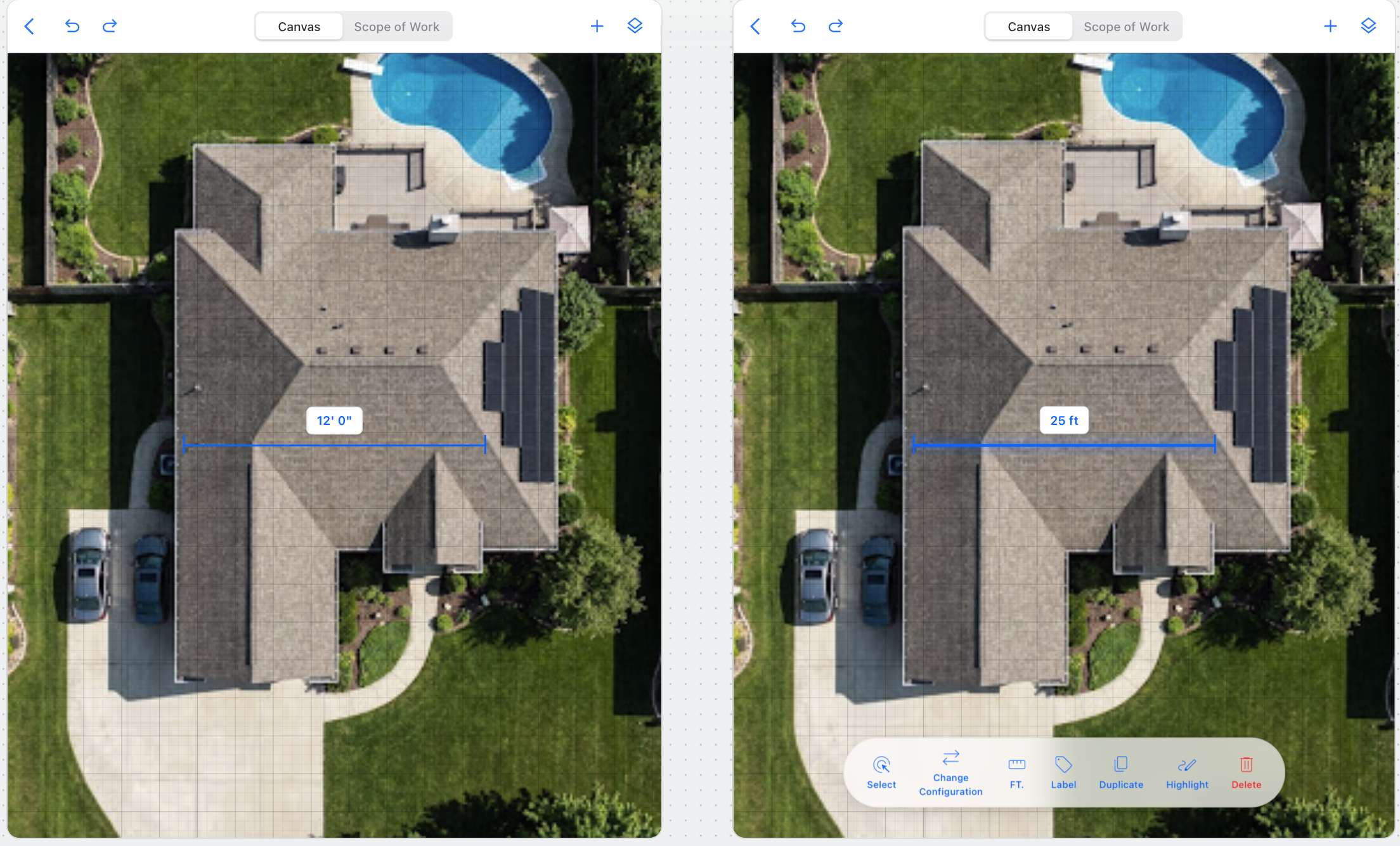
Visual reference 24 — approved visual direction for this section. The written requirements above prevail over labels, sample data, or prices shown in the images. See Canvas Editor references
Labels and highlights
Section titled “Labels and highlights”- Label: a callout — free-text box connected to its object by a line/arrow. Repositionable, follows the object, appears in JPG, never changes SOW quantities or prices. Deleting an object deletes its linked labels after confirmation.
- Highlight: a fluorescent fuchsia emphasis layer. Appears in JPG; changes no product data, footage, configuration, or price. Must stay translucent enough to preserve readability.