
Users & Roles
import { Aside } from ‘@astrojs/starlight/components’;
Source: Master Spec v2.0, §4.
Private access
Section titled “Private access”- There is no public registration. An Admin invites a user by email and assigns a role.
- The invitation link lets the user create a password and complete the profile.
- Login uses Email + Password. Email and Role are read-only for the user, managed by Admin.
- A secure session may remain available offline after the first successful online login.
- Logging out removes offline access and requires internet for the next login.
- Admin may deactivate an account or revoke sessions without deleting associated estimates or audit data.
The three roles
Section titled “The three roles”The only roles are Admin, Office Manager, and Estimator. Users cannot create additional roles.
Estimator
Section titled “Estimator”- Create estimates; by default view and edit only estimates assigned to them (subject to the edit lock).
- An Admin may explicitly grant an individual Estimator permission to view or edit other Estimators’ estimates.
- Use all estimating tools, pricing profiles, Proposals, Preview, and JPG/PDF export.
- View Version History for accessible estimates; archive/unarchive estimates they own.
- Cannot manage users, master catalog data, Trash, or administrative audit records.
Office Manager
Section titled “Office Manager”- Create estimates; view and edit all estimates (subject to the edit lock).
- Use all estimating tools and export JPGs/PDFs; archive/unarchive all accessible estimates.
- May view operational history for estimates they can access.
- Cannot manage users, the master catalog, critical company settings, or Trash.
- All operational capabilities, plus: invite/edit/deactivate/reactivate users; assign roles and assigned estimators.
- Manage products, services, accessories, configurations, materials, colors, Regular pricing, Roofer profiles, commissions, Gallery, company information, and Final Sketch content.
- View administrative audit records; force-unlock abandoned editing sessions; restore from Trash or delete permanently; delete saved versions other than the protected original baseline.
All Admins have the same administrative authority in the MVP.
User profile
Section titled “User profile”Three internal sections only — Profile, Security, Notifications — as separate views (never stacked on one long page). No Integrations or Bio.
When an Office Manager or Estimator opens Profile Settings, the primary sidebar contains only Dashboard.
Profile — avatar (initials by default; user cannot upload their own photo), editable First/Last Name, read-only Email and Role, and the Digital Signature section (Estimator only): draw with finger/stylus/mouse or upload a transparent PNG, with Clear, Undo, Cancel, Preview, Save Signature. Only the Estimator may author/replace their signature; Admin sees status/preview only.
Security — Current / New / Confirm password, Update Password, optional Log Out of Other Devices.
Notifications — Apple-style switches for estimate assignment/reassignment, changes to accessible estimates, catalog updates, sync errors, account/security alerts.
Appearance — Light / Dark / System. Changes navigation and home surfaces only; never recolors Canvas, SOW, Preview, or Final Sketch.
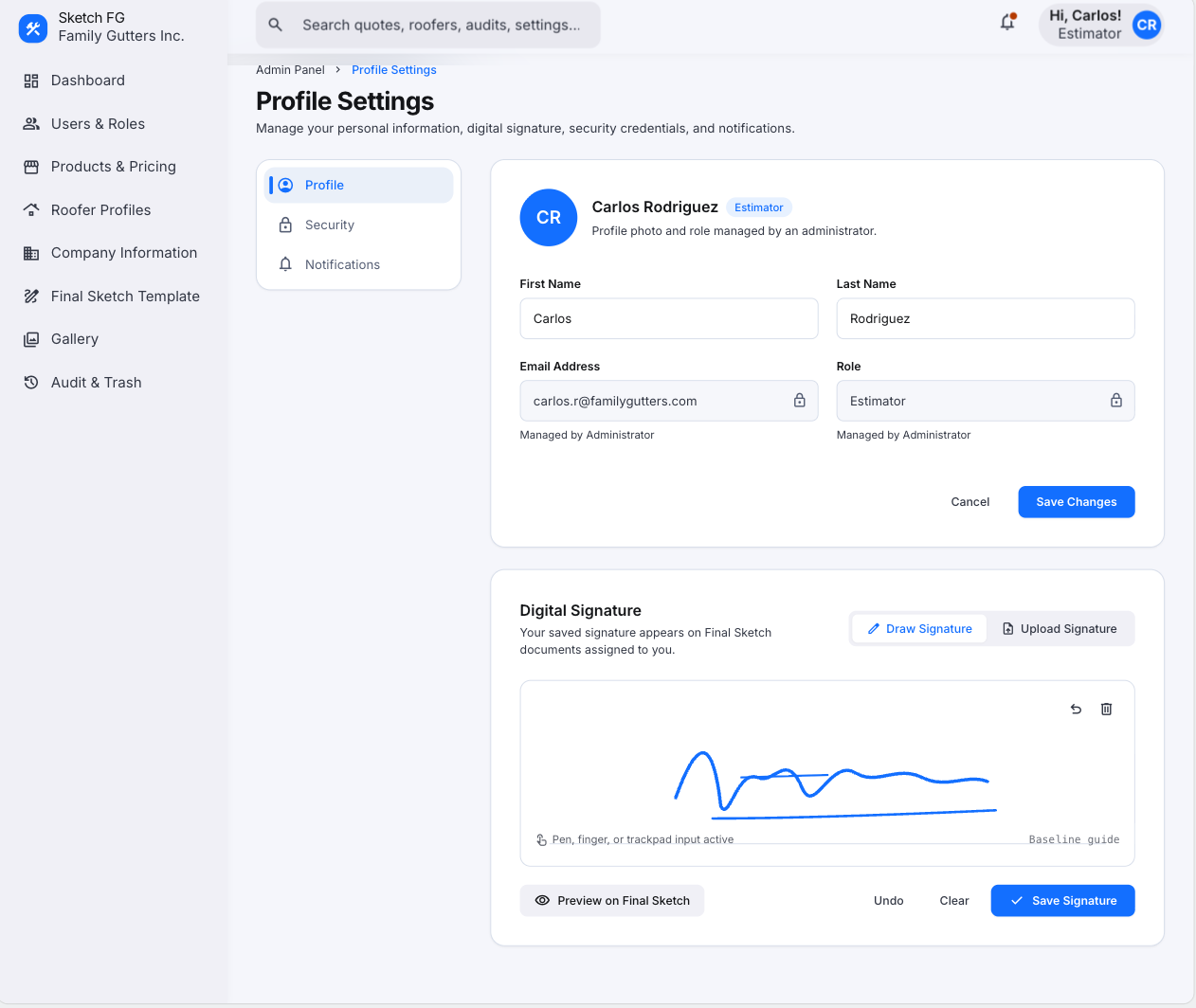
Visual reference 55 — approved visual direction for this section. The written requirements above prevail over labels, sample data, or prices shown in the images. See Admin Screens
Account avatar menu
Section titled “Account avatar menu”Clicking the account avatar in the global header opens a compact menu: header (avatar/initials, name, email, fixed role), then My Profile, Appearance (System/Light/Dark submenu), Change Password, divider, Log Out.
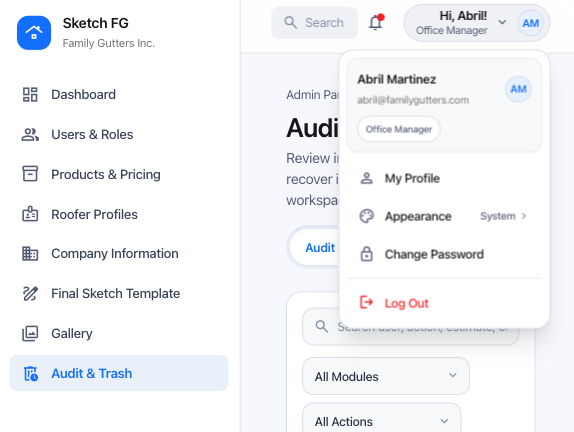
Visual reference 54 — approved visual direction for this section. The written requirements above prevail over labels, sample data, or prices shown in the images. See Admin Screens